Showing posts with label CI. Show all posts

Wednesday, July 22, 2015

Using PowerShell to Create, Publish, Read and Remove NuGet packages


I’ve created some simple functions to do these actions using the nuget.exe executable and put in a module. These can be also used to hook it up with the TFS build process as post-build scripts to publish the packages directly to NuGet server after a successful build.

Function Get-NugetPackages
{   
    param
    (
        [String] $Source = "http://prajeeshnuget.azurewebsites.net/nuget",
        [switch] $IncludePreRelease,
        [switch] $AllVersions,

        [ValidateScript({Test-Path $_ -PathType Leaf -Include "nuget.exe"})]
        [String] $NugetLocation = (Join-Path $PSScriptRoot "nuget.exe")
    )

    $command = $NugetLocation + " list "

    if(-not ([String]::IsNullOrEmpty($Source)))
    {
        $command += " -s "  + $Source
    }

    if($IncludePreRelease)
    {
        $command += " -Prerelease"
    }

    if($AllVersions)
    {
        $command += " -AllVersions"
    }

    Invoke-Expression $command
}

Function UnPublish-NugetPackage
{
    param
    (
        [string] $Source = "http://prajeeshnuget.azurewebsites.net",

        [Parameter(Mandatory = $true, Position = 0)]
        [ValidateNotNull()]
        [switch] $PackageId,

        [Parameter(Mandatory = $true, Position = 1)]
        [ValidateNotNull()]
        [switch] $Version,

        [string] $APIKey = "MYKEY",

        [ValidateScript({Test-Path $_ -PathType Leaf -Include "nuget.exe"})]
        [String] $NugetLocation = (Join-Path $PSScriptRoot "nuget.exe")
    )

    $command = $NugetLocation + " delete $($PackageId) $($Version) $($APIKey) -NoPrompt"
    if(-not ([String]::IsNullOrEmpty($Source)))
    {
        $command += " -s "  + $Source
    }

    Invoke-Expression $command
}

Function Publish-NugetPackage
{
    param
    (
        [string] $Source = "http://prajeeshnuget.azurewebsites.net",

        [Parameter(Mandatory = $true, Position = 0)]
        [ValidateNotNull()]
        [ValidateScript({Test-Path $_})]
        [switch] $PackagePath,
       
        [string] $APIKey = "MYKEY",

        [ValidateScript({Test-Path $_ -PathType Leaf -Include "nuget.exe"})]
        [String] $NugetLocation = (Join-Path $PSScriptRoot "nuget.exe")
    )

    $command = $NugetLocation + " push $($PackagePath) $($APIKey)"
    if(-not ([String]::IsNullOrEmpty($Source)))
    {
        $command += " -s "  + $Source
    }

    Invoke-Expression $command
}

Function New-NugetPackage
{
    param
    (
        [Parameter(Mandatory = $true, Position = 0)]
        [ValidateNotNull()]
        [ValidateScript({Test-Path $_})]
        [switch] $NuspecPath,

        [ValidateScript({Test-Path $_ -PathType Leaf -Include "nuget.exe"})]
        [String] $NugetLocation = (Join-Path $PSScriptRoot "nuget.exe"),

        [string] $OutputDirectory
    )
    $command = $NugetLocation + " pack $($NuspecPath)"

    if(-not ([String]::IsNullOrEmpty($OutputDirectory)))
    {
        $command += " -OutputDirectory "  + $OutputDirectory
    }

    Invoke-Expression $command
}

Export-ModuleMember -Function *-Nuget*

You can also download the module from GitHub from https://goo.gl/cQbBD3


Wednesday, April 2, 2014

DevOps - Workbench deployment orchestration

DevOps Deployment Workbench offers customized XAML workflow templates that are designed to encapsulate many smaller individual deployment steps into a singular consistent workflow. Using the DevOps workbench you can create deployment Activities that offer many smaller coded XAML activities that perform distinct build or deployment tasks, such as updating of a value in an XML configuration document. All these activities can be later executed from the workbench UI to perform a deployment activity.
In this article we'll use the workbench UI to create a deployment orchestration and use this to perform a deployment activity.
  • From the DevOps workbench UI, create a new Deployment Orchestration as given below.

  • This creates a master deploy sequence which you can customize and extend by adding custom activities that describes your deployment process
  • From the properties box, change the master deploy sequence display name to your project deployment sequence name.

  • The deployment toolbox contains common deployment activities which you can use in your deployment sequence by dropping them to your activity
  • To start with the sample deployment scenario, we'll add a pre check for a valid operating system before copying the assemblies to the server.
  • From the toolbox, drag and drop the CheckOSName activity to the deployment sequence

  • From the toolbox drag and drop the .Net application deployment activity to the sequence and provide details for source and target as given below

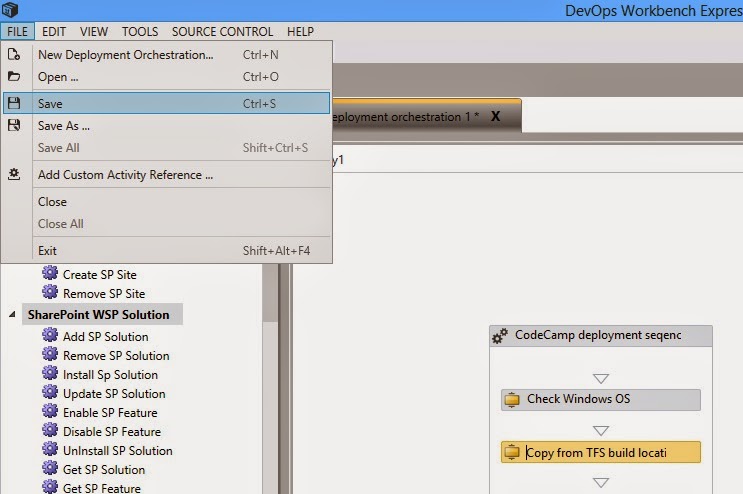
  • Save your orchestration to the disk

  • We'll now use this initial deployment sequence to deploy to a test server from the workbench UI.
  • For adding a new target server connection, choose Target Servers option from the menu

  • Click on Refresh to see the target servers for deployment

  • Once you have configured the target servers, you can deploy the application from the workbench UI by clicking on Deploy to servers from the menu
  • Choose your build, package name and target server details to deploy the application from the workbench

  • Click on start to start the deployment process